Illustrations use the real interface with fictional example accounts and report data.
01
Choose Public on the homepage
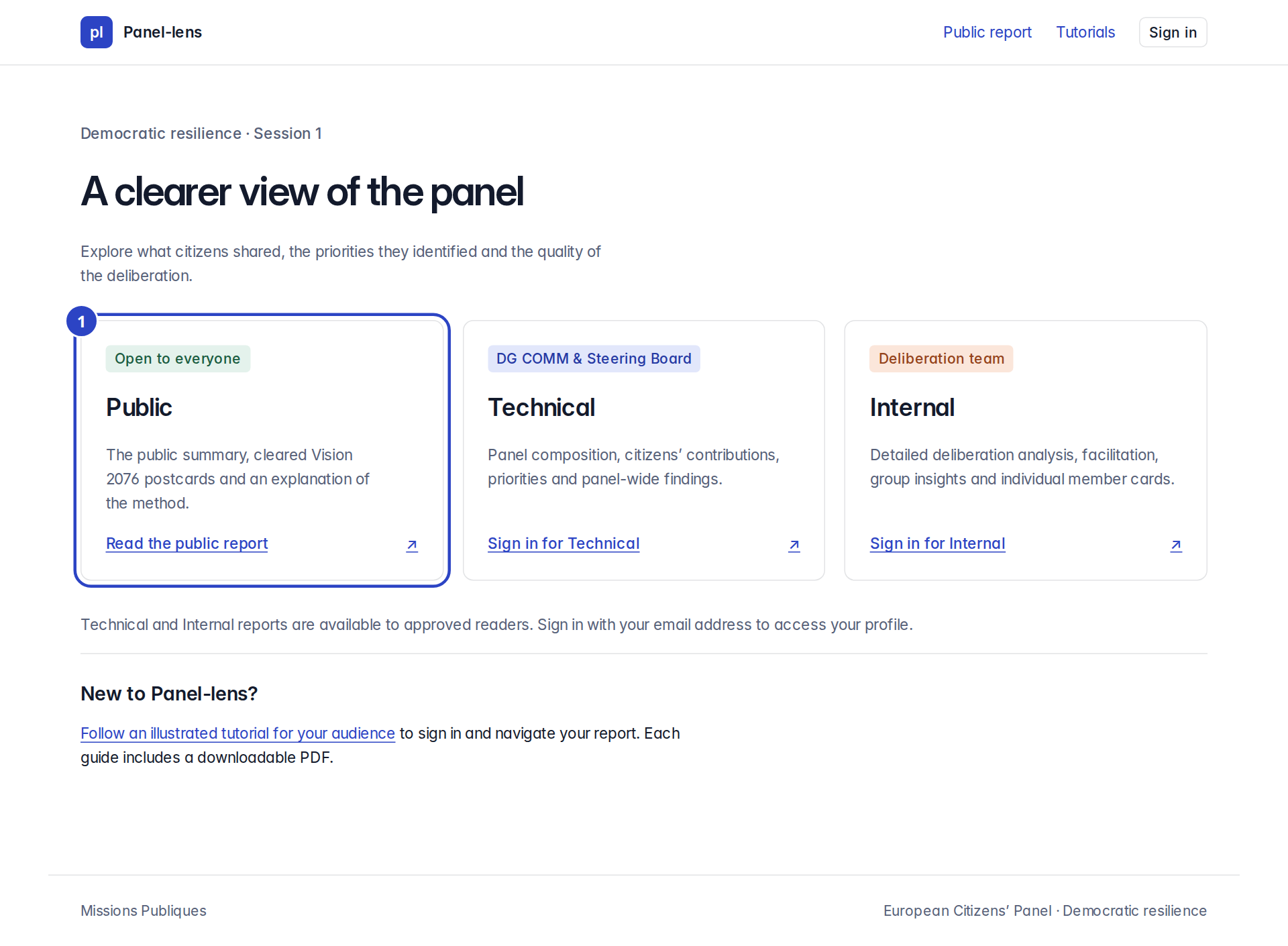
Open ecpcompanion-dashboard.missionspubliques.tech. In the Public card, select Read the public report. You do not need to sign in or select an account profile.
The three cards are report entrances. Selecting Technical or Internal does not grant access to those categories; an administrator must approve the corresponding email address first.
The outlined Public card is the open entrance. The other two reports require approved access. Select an image to enlarge it.
02
Start with the summary, then use the section menu
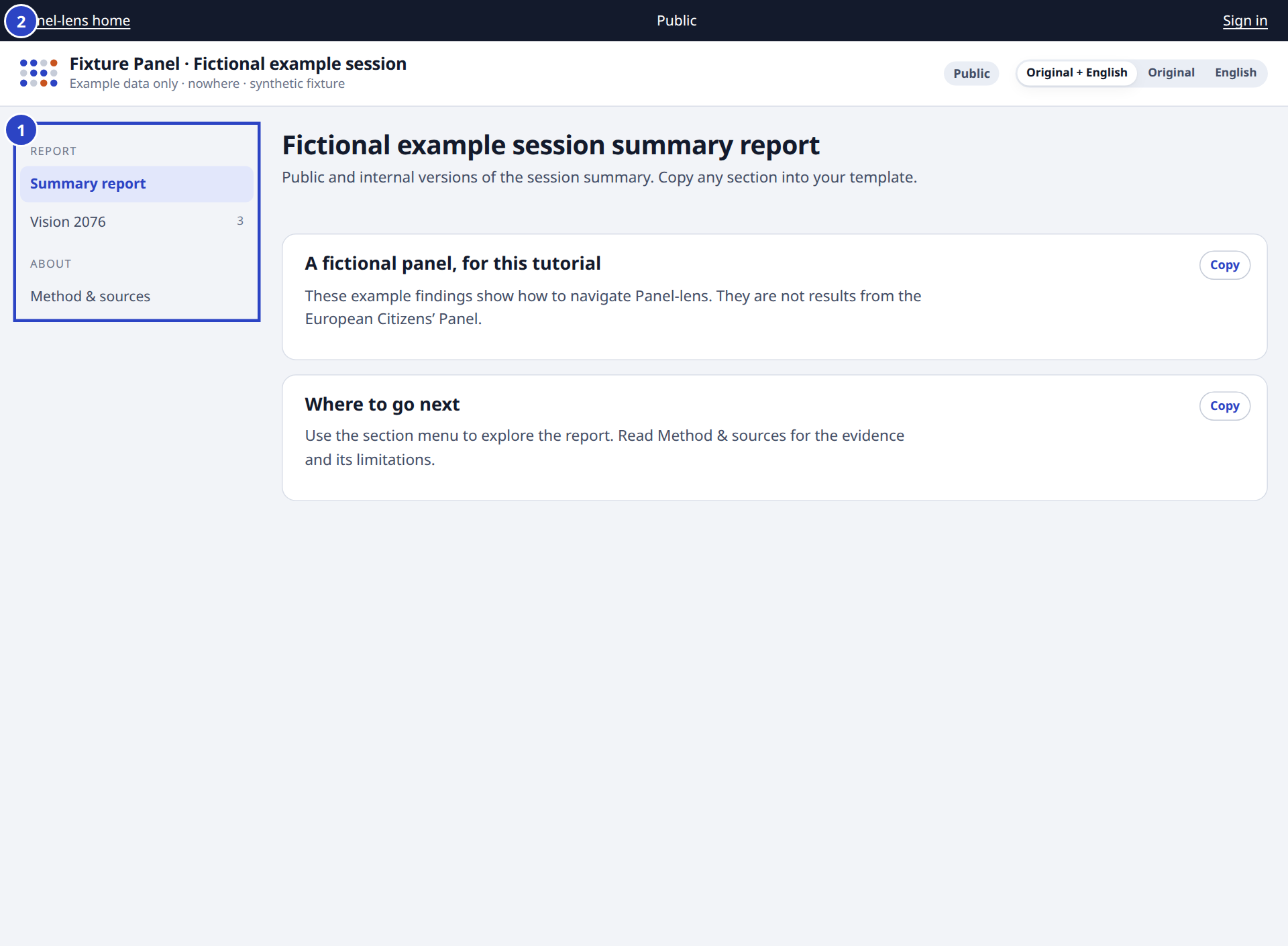
Select Summary report to read the overview. Use the menu on the left to move between Summary report, Vision 2076 and Method & sources. A section appears only when its content is available.
On a phone, the report’s section menu becomes a horizontal strip near the top. Swipe across it to find a section, then tap its name. The portal’s separate Menu button contains account navigation.
Method & sources explains the evidence and its limitations. Use Panel-lens home in the top bar to return to the three report cards.
The section menu changes the report view. The top bar returns you to the portal. Select an image to enlarge it.
03
Browse the postcards and choose a quote language
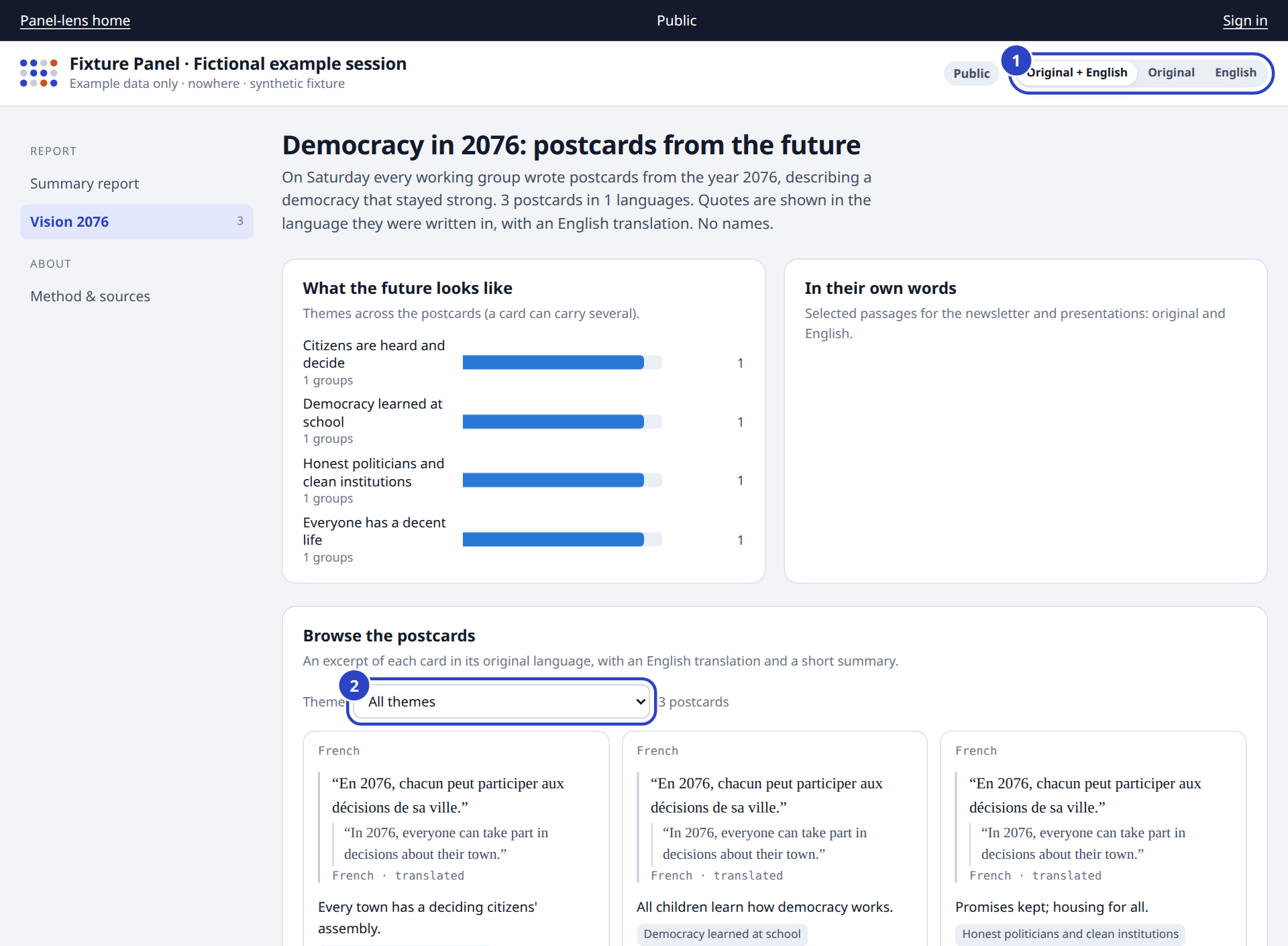
Select Vision 2076, then scroll to Browse the postcards. Use Theme to narrow the cards; select All themes to clear the filter.
At the top, choose Original + English, Original or English to change quotations where both versions are available. This changes the quotations, not the language of the whole website.
Public contains only postcards cleared for public viewing. To share the public report, send its link. Technical and Internal material is outside this public view.
The quotation-language buttons and Theme filter help you explore the postcards. Select an image to enlarge it.
Your navigation at a glance
Summary report
Read the public overview.
Vision 2076
Browse cleared postcards and available translations.
Method & sources
Understand sources, coverage and caveats.
If something does not work
The code email is missing
Check spam or junk and mark a legitimate Panel-lens message as not spam. Verify your email address. Only approved, active accounts receive codes; ask the panel administrator to check your access. Avoid repeated requests.
The code is rejected or expired
Use the latest code requested in that same browser session within 10 minutes. After too many failed attempts, or if the session is no longer usable, start a fresh sign-in session and request a new code. Never share a code with support.
“This page needs a different profile”
Return to Panel-lens home and open your assigned report. Selecting another category does not grant access. Ask the administrator if your profile needs changing. Internal readers should use the Internal entrance for technical material.
I cannot find a section on my phone
Swipe the report’s horizontal section strip. On portal pages, use Menu for account navigation. A section may be absent because the current report or your access level does not include it.
Panel-lens · Missions Publiques · Guide for the September 2026 portal. Read the latest version at ecpcompanion-dashboard.missionspubliques.tech/help/public/.