Illustrations use the real interface with fictional example accounts and report data.
01
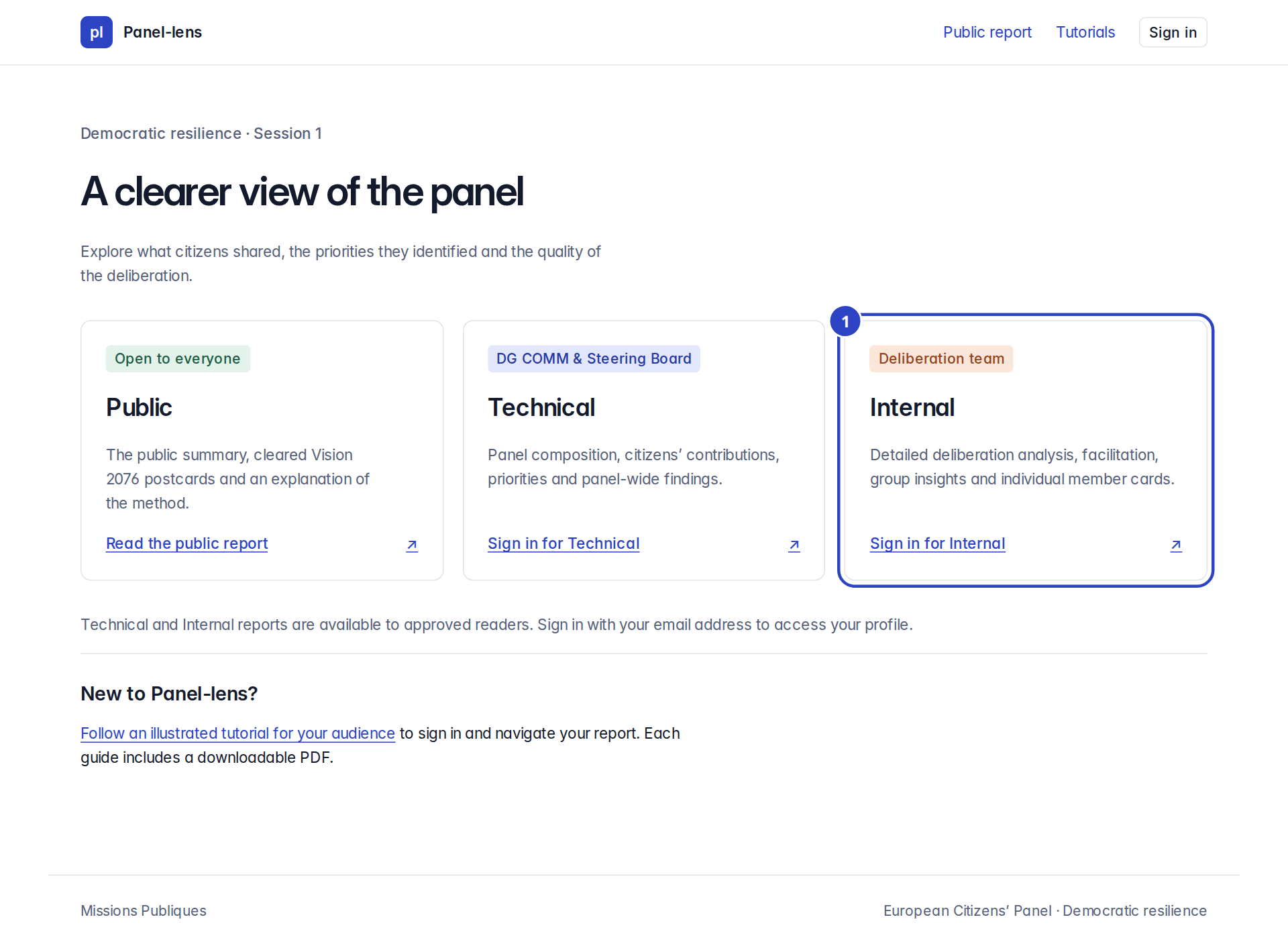
Choose Internal for your team workspace
On the homepage, select Sign in for Internal in the Internal card. Once you are signed in with an Internal account, choose Open Internal. The homepage identifies your account as Internal profile.
Selecting another card does not switch your assigned profile. You can always read Public; use Internal to access both the technical material and the team’s detailed analysis.
The Internal entrance is for approved members of the deliberation team. Select an image to enlarge it.
02
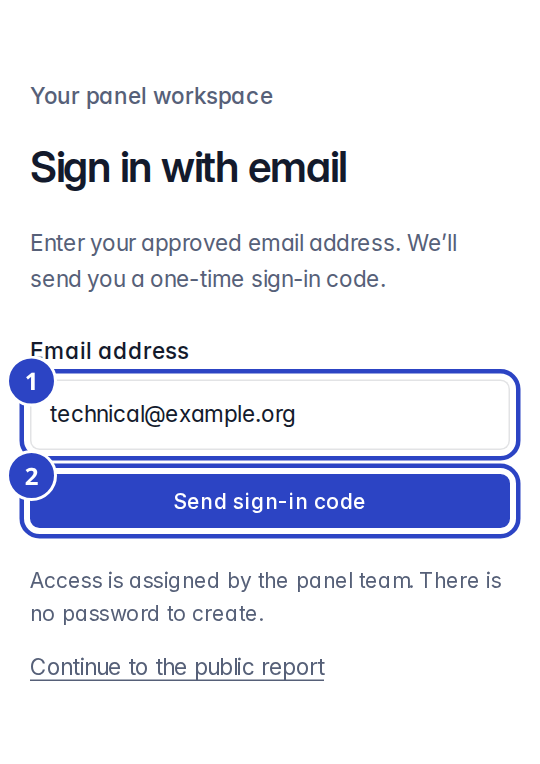
Sign in with your approved email
Enter the email address approved by the panel team, then select Send sign-in code. There is no password to create and no self-registration.
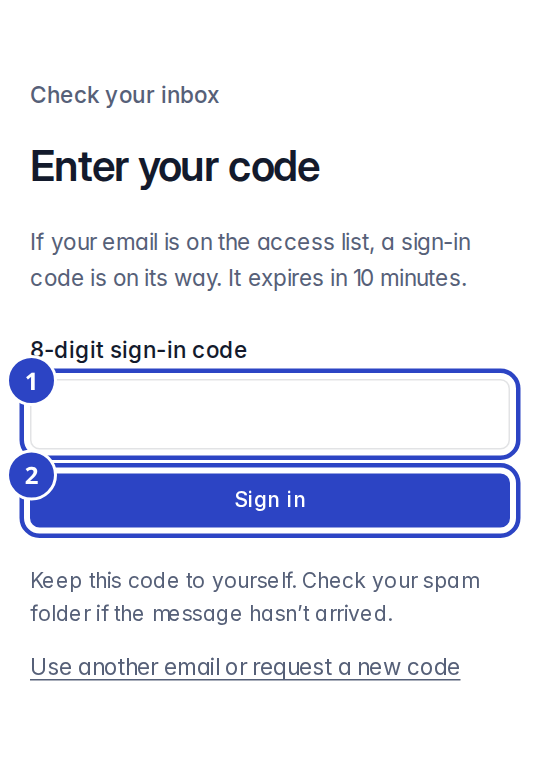
Open the message titled Your Panel-lens sign-in code. Check spam or junk if it is missing. Return to the same browser tab, enter the eight-digit code and select Sign in. The code expires after 10 minutes; keep it to yourself.
The sign-in screen does not reveal whether an address is approved. If no message arrives, check the address and ask the administrator to confirm your access. Repeated requests are limited; wait before trying again.
Enter your own approved email on the left, then the code from your email on the right. These are example screens. Select an image to enlarge it.
A code works only in the browser session that requested it. If it has expired or you changed browsers, start again with a fresh sign-in session. On a shared device, sign out when finished.
03
Move from the report to team analysis
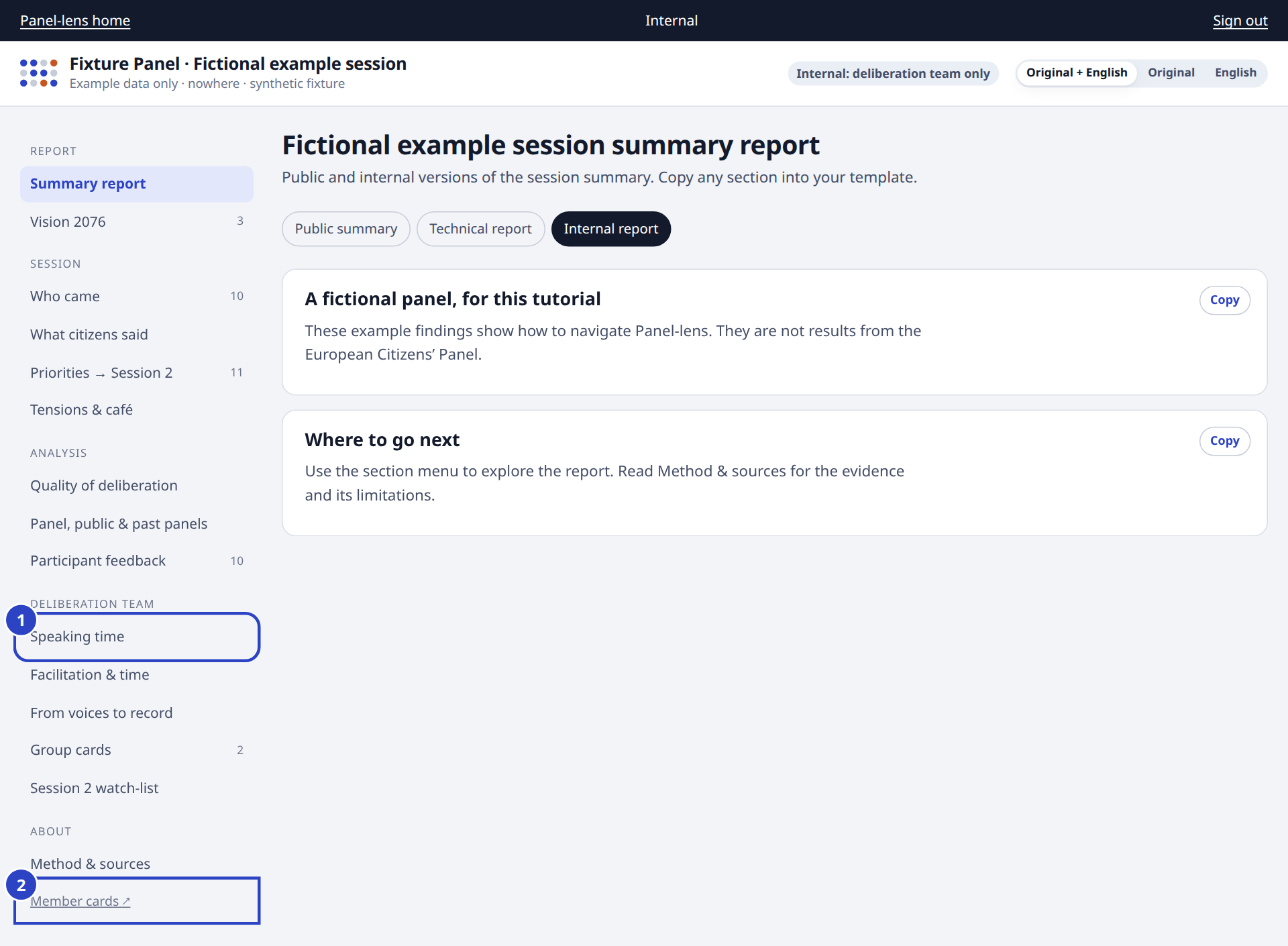
Start with Summary report and the session-wide views. The Deliberation team part of the left menu adds Speaking time, Facilitation & time, From voices to record, Group cards and Session 2 watch-list where available.
Select a section to open it. In Group cards, select a group card to expand its details. On a phone, swipe the horizontal section menu to reach the team views.
Read the notes beside each measure, including experimental labels and attribution limits. These views help review the deliberation and its record; they are not scores for evaluating individuals.
Internal includes the session views and additional Deliberation team sections. Select an image to enlarge it.
04
Open and filter individual member cards
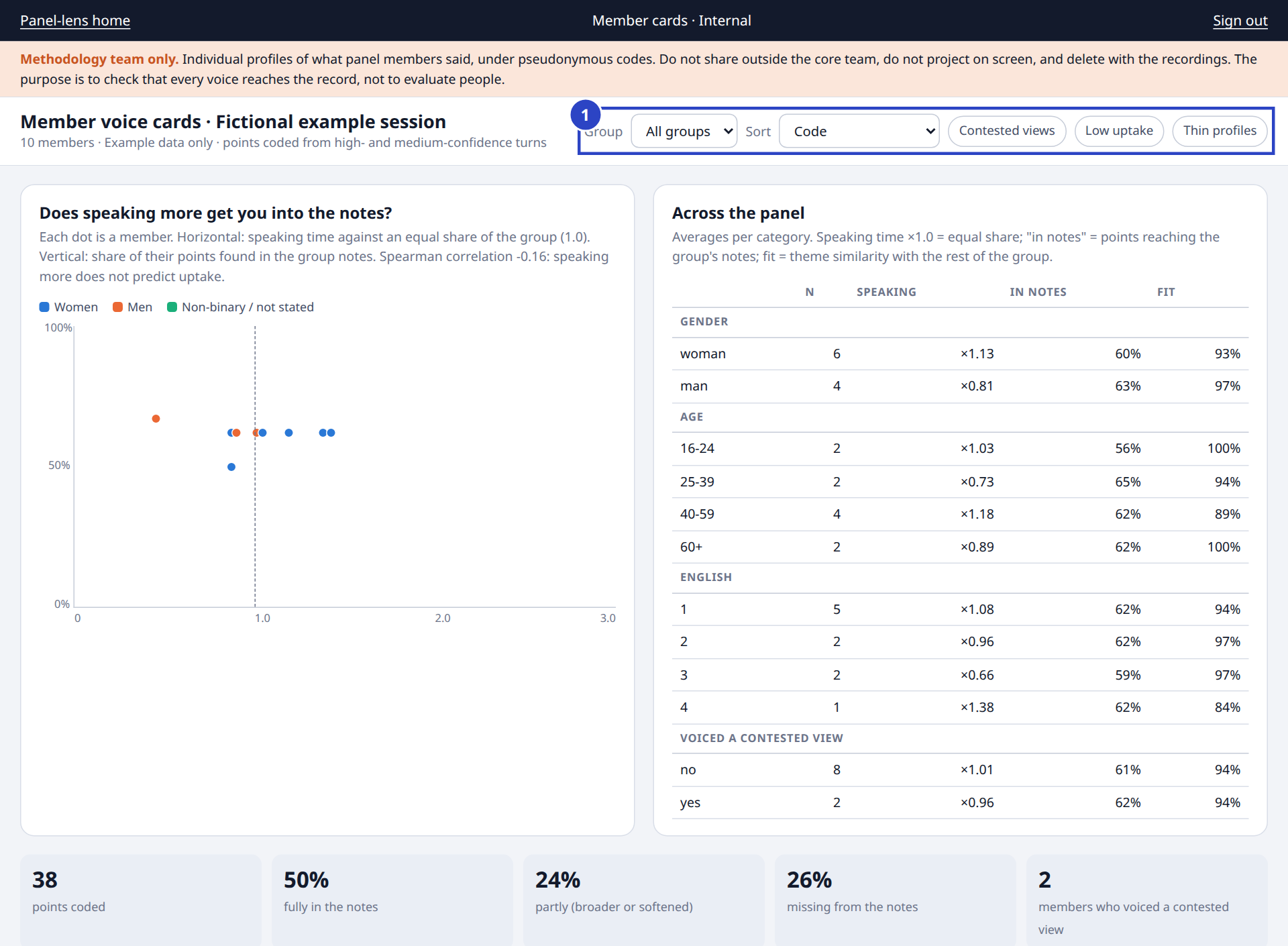
Select Member cards ↗ at the end of the section menu. On the cards page, use Group to narrow the view and Sort to choose Code, Speaking time, Reached the notes or Fit with group.
Use Contested views, Low uptake and Thin profiles to focus the list. Select a member card to expand its details. Click the active filters again and choose All groups to return to the broader view.
The codes are pseudonyms. Keep these cards within the authorized core team, do not project them to a public audience, and follow the retention instructions in the page banner. The illustrations here contain fictional members only.
Use the group, sort and filter controls, then select a card. All member information shown here is fictional. Select an image to enlarge it.
05
Return to the portal and sign out
Use your browser’s Back button to return from member cards to the report, or select Panel-lens home in the top bar to return to the homepage.
Select Sign out and confirm if prompted. This matters on shared computers. Do not forward member-card screenshots or copied Internal content to people without the corresponding authorization.
The report’s Sign out link opens this confirmation. Complete it to end your session. Select an image to enlarge it.
Your navigation at a glance
Session & Analysis
Read the same core material available within Technical.
Speaking time & Facilitation & time
Review participation and facilitation patterns.
From voices to record
Examine how contributions reached the collective record.
Group cards & Session 2 watch-list
Explore group details and follow-up points.
Member cards
Inspect individual contributions within the authorized team.
If something does not work
The code email is missing
Check spam or junk and mark a legitimate Panel-lens message as not spam. Verify your email address. Only approved, active accounts receive codes; ask the panel administrator to check your access. Avoid repeated requests.
The code is rejected or expired
Use the latest code requested in that same browser session within 10 minutes. After too many failed attempts, or if the session is no longer usable, start a fresh sign-in session and request a new code. Never share a code with support.
“This page needs a different profile”
Return to Panel-lens home and open your assigned report. Selecting another category does not grant access. Ask the administrator if your profile needs changing. Internal readers should use the Internal entrance for technical material.
I cannot find a section on my phone
Swipe the report’s horizontal section strip. On portal pages, use Menu for account navigation. A section may be absent because the current report or your access level does not include it.
Panel-lens · Missions Publiques · Guide for the September 2026 portal. Read the latest version at ecpcompanion-dashboard.missionspubliques.tech/help/internal/.