01
Sign in to access administration
Open ecpcompanion-dashboard.missionspubliques.tech/admin/. Enter your approved administrator email and select Send sign-in code. There is no password to create.
Check your inbox and spam folder. Enter the eight-digit code in the same browser tab within 10 minutes, then select Sign in. Keep the code to yourself.
After signing in, Manage access is also available in the portal header. On a phone, open Menu first. An administrator account is required for this page.
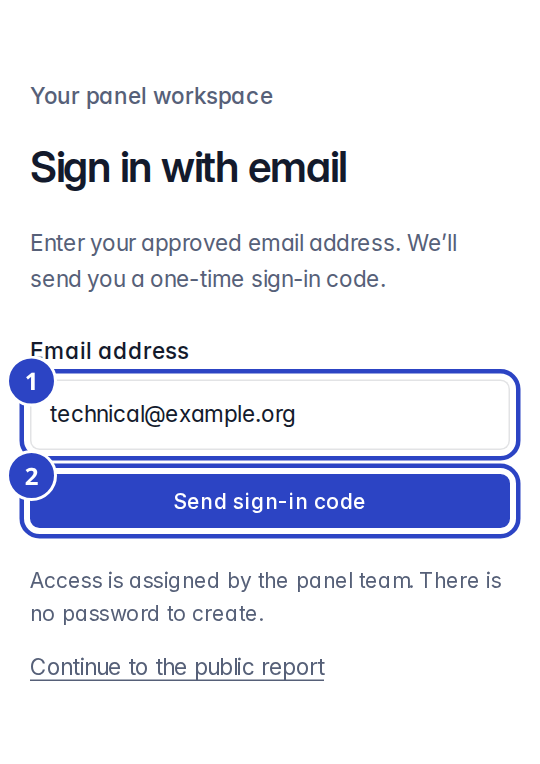
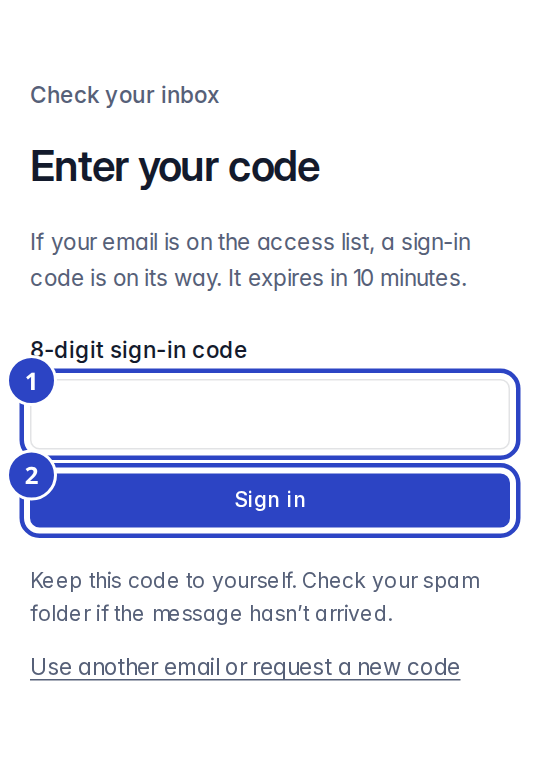
A code works only in the browser session that requested it. If it has expired or you changed browsers, start again with a fresh sign-in session. On a shared device, sign out when finished.
02
Prepare the list and choose each person’s profile
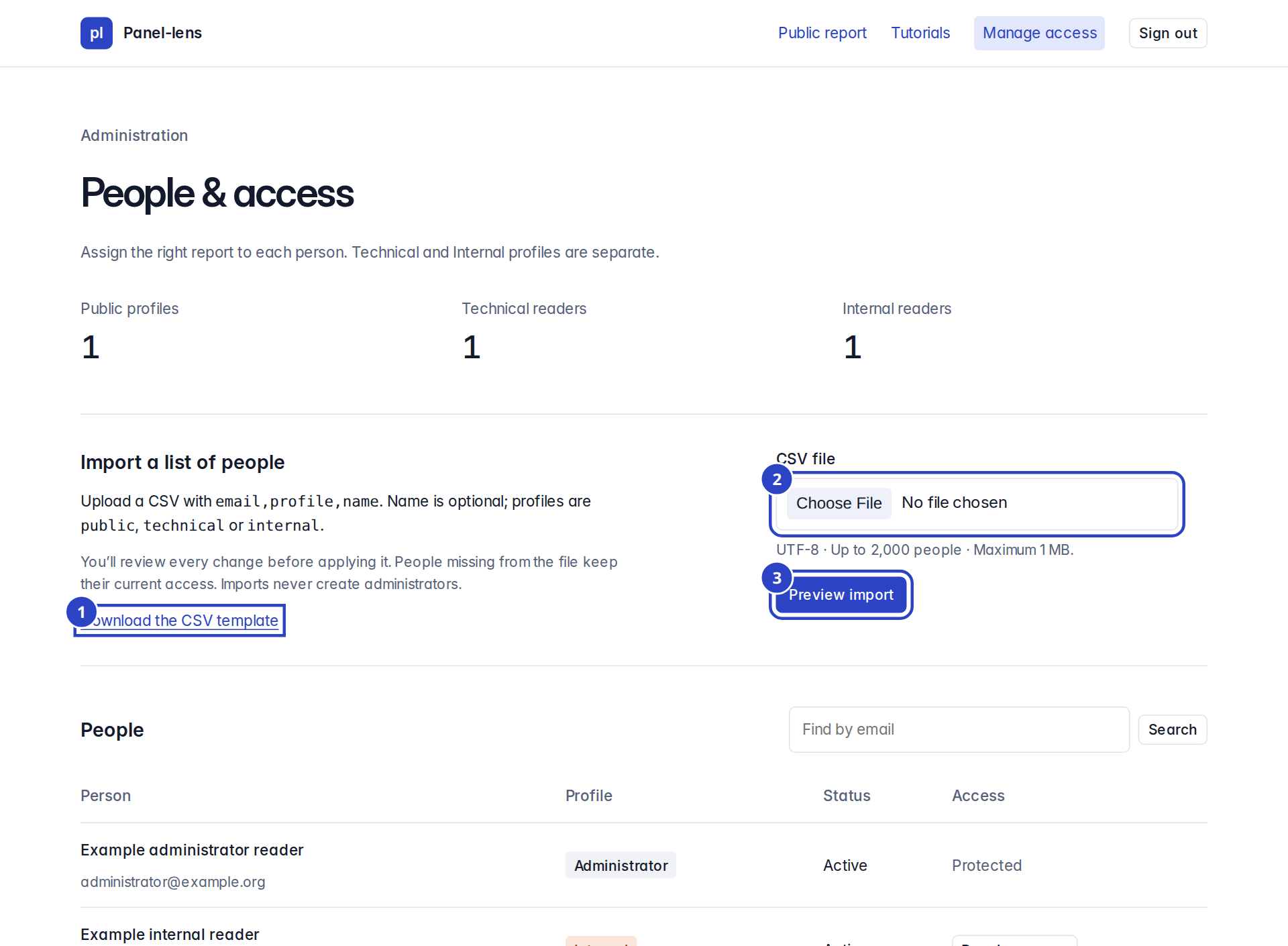
On People & access, select Download the CSV template. Use the columns email,profile,name; name is optional. Use one row per email and one profile per person: public, technical or internal.
Assign technical to approved Technical readers and internal to approved deliberation-team members. Public access is already open; assigning public to an existing reader removes their restricted access. Administrator access cannot be assigned in this file.
Save as UTF-8 CSV with commas or semicolons, up to 2,000 people and 1 MB. In CSV file, select your file, then choose Preview import.
email,profile,name
technical@example.org,technical,Example technical reader
internal@example.org,internal,Example team member
Replace the example rows with approved readers. Keep the header.
03
Review every change, then apply
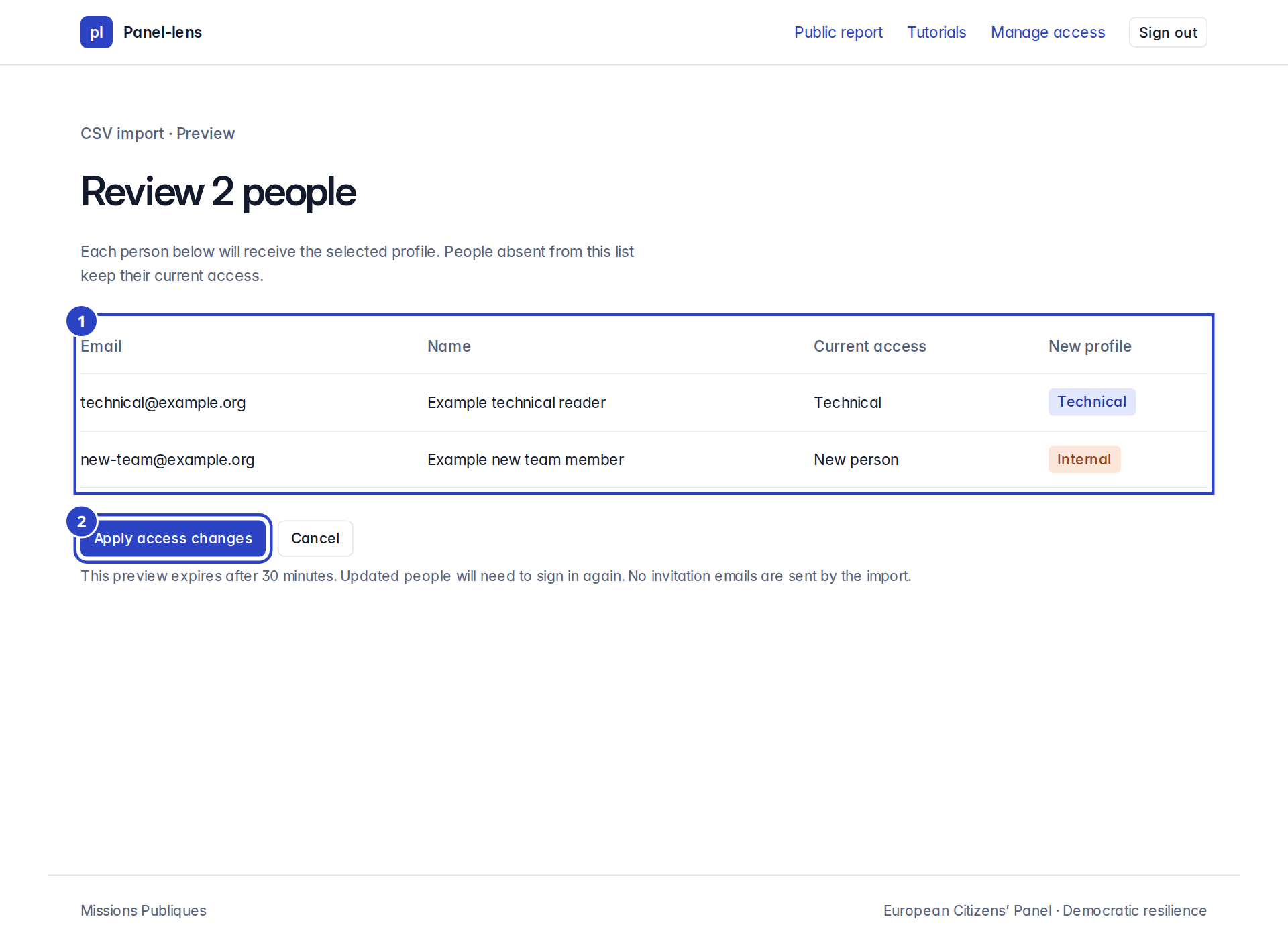
The preview shows each person’s email, current access and new profile. Check the addresses and categories carefully. Reactivate identifies a previously revoked reader whose access will be restored.
Select Apply access changes to confirm, or Cancel to leave access unchanged. Previews expire after 30 minutes and cannot be applied twice. If an account changed after preview, upload the CSV again to review the latest state.
An import adds or updates only the listed people. Anyone missing from the file keeps their existing access. Invalid rows reject the entire upload. No invitation email is sent: share the portal link with approved readers separately. Updated readers must sign in again.
04
Find a reader, revoke access or change a profile
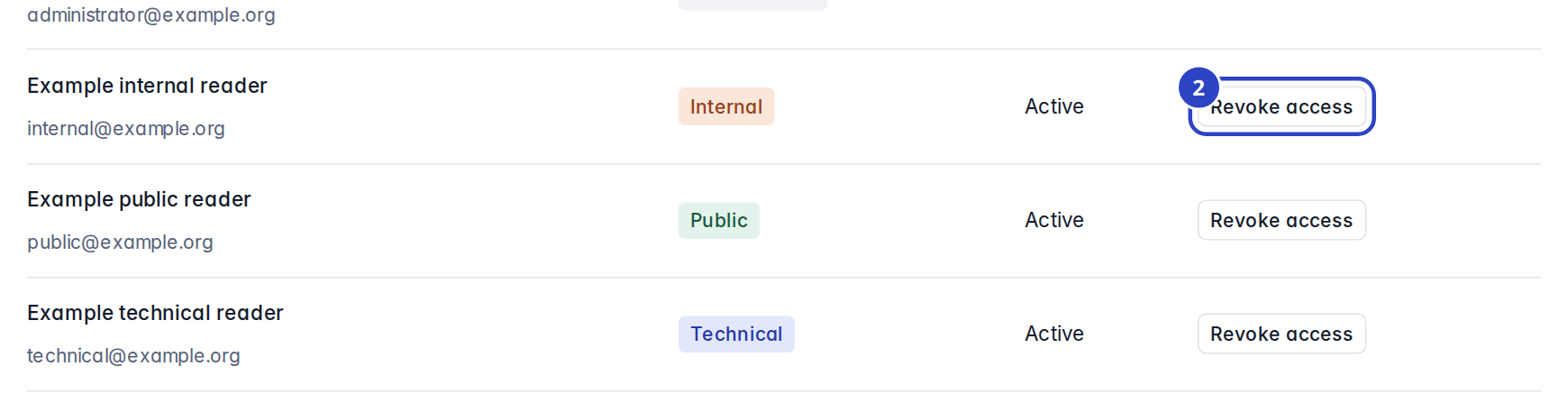
Use Find by email in People to locate a reader. Revoke access disables that reader immediately, including an existing signed-in session. It does not remove the open Public report.
To change a profile or restore a revoked reader, import a CSV containing that address and its intended profile, review the preview and apply it. Removing someone from a CSV does not revoke access.
Recent activity records access changes and sign-ins. Administrator rows are protected. To inspect report content, return to Panel-lens home and choose Public, Technical or Internal; your administrator account can open each one.